

Enhance your WordPress site with our plugin that links Advanced Custom Fields (ACF) and Elementor. It adds an Icon Picker to ACF, integrating Elementor Custom Icons and Font Awesome, making icon selection easy for custom fields.
Our dynamic Elementor widget supports ACF field names, enabling icon display across your site based on selected fields, including ACF Flexible Content layouts. Achieve fully customizable, code-free designs!
Advanced Custom Fields: Elementor Custom Icons is a powerful plugin designed to bridge the gap between ACF and Elementor, allowing you to add custom icons effortlessly to your WordPress site.

Experience enhanced customization with our Custom Icon Field for Advanced Custom Fields (ACF).
Select which icon sets to display per field: the full Font Awesome 6 library included by default, your own IcoMoon / Fontello sets uploaded through Elementor, and — new in 2.0 — your own custom SVG files uploaded directly from the plugin settings.
Fully compatible with Flexible Content, Repeater fields and Taxonomy Terms, giving you dynamic, flexible icon selection throughout your entire website.
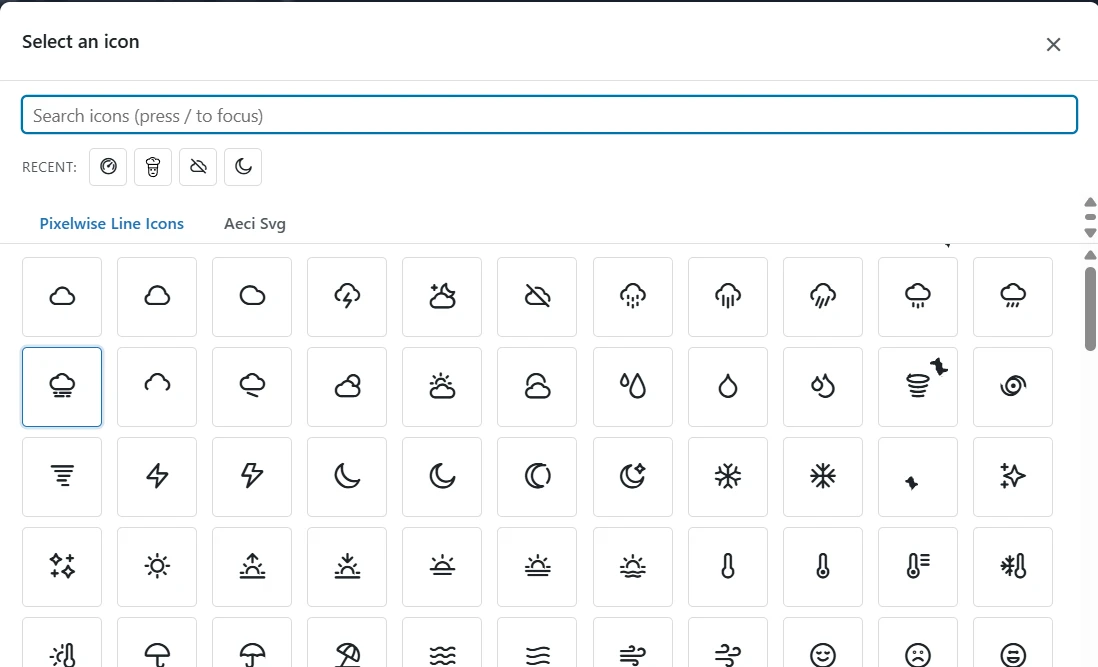
Find the perfect icon instantly with the all-new icon picker — completely rebuilt in version 2.0.
The selector opens in a fast, virtualized grid that handles thousands of icons without lag. A search bar (press / to focus it instantly) filters by name across all sets simultaneously. Navigate with keyboard shortcuts — arrow keys browse, Enter selects, Esc closes. A Recent icons strip at the top keeps your most-used icons one click away.
Switch between icon sets — Font Awesome, your IcoMoon / Fontello uploads, and your SVG library — using the tabs at the top of the picker.
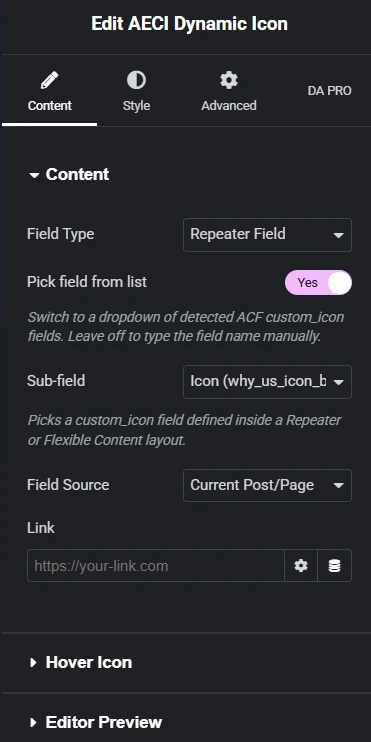
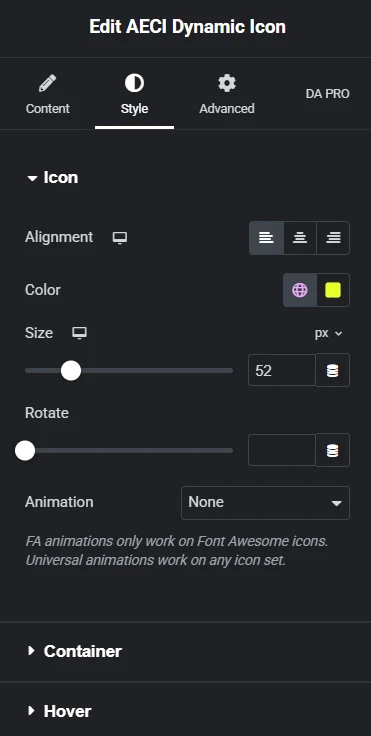
The new AECI Dynamic Icon — one unified widget that replaces three legacy widgets and handles every ACF field type: Simple, Group, Repeater, Flexible Content and Taxonomy Term fields.
Enter the ACF field name, or use the smart dropdown to pick from all detected custom icon fields. Set the field source (current post or Options Page) and optionally add a link.
New in 2.0: enable Hover Swap to show a different icon on hover — static or read from another ACF field. Choose from 9 built-in animations (Spin, Pulse, Beat, Bounce and more). Use Editor Preview to display a placeholder icon inside the Elementor editor when the widget is inside a loop template.
In the Style tab: full control over alignment, color, size, rotate, background, border, padding, border radius, box shadow — with a separate Hover sub-tab for hover-state overrides and transition duration.
/ to focus instantly.prefers-reduced-motion.LIBXML_NONET). Sanitization runs at upload and read time.Have questions? We have answers.
Advanced Custom Fields: Elementor Custom Icons is a powerful WordPress plugin that seamlessly integrates custom icons into your website. It extends the functionality of both Advanced Custom Fields (ACF) and Elementor, allowing you to select and display custom icons, including Font Awesome and your own uploaded icon sets. With compatibility for Flexible Content and Repeater fields, it offers dynamic and flexible icon management throughout your site.
Yes, this plugin is designed to enhance the capabilities of both Advanced Custom Fields and Elementor. You need to have both plugins installed and activated on your site to utilize all the features offered by Advanced Custom Fields: Elementor Custom Icons.
Yes, Font Awesome is included by default. You have immediate access to the entire Font Awesome library, giving you thousands of icons to choose from without any additional setup.
In your WordPress admin panel, navigate to Custom Fields > Field Groups and either create a new field group or edit an existing one. Add a new field and set the Field Type to Custom Icon. Configure any additional settings as needed, such as selecting which icon sets to include. Assign the field group to your desired post types or pages.
When editing a post or page with a Custom Icon field, you’ll see an icon selector interface. Clicking on the field opens an overflow window displaying all available icons in a grid format. You can browse through the icons or use the search bar to quickly find a specific icon by name.
Yes, the plugin is fully compatible with ACF’s Flexible Content and Repeater fields. This means you can dynamically add and manage icons within flexible layouts and repeating field groups, providing greater flexibility in your content design.
Within the Elementor editor, the Custom Icon widget’s Style tab offers extensive customization options. You can adjust the icon’s alignment, size, and color for both normal and hover states. This allows you to tailor the icon’s appearance to match your site’s design perfectly.
The plugin is optimized for performance and is designed to have minimal impact on your site’s loading speed. It efficiently loads icon fonts and scripts only when necessary. However, as with any plugin, it’s recommended to test its performance impact, especially if you have a large number of icons or complex layouts.
To receive automatic updates and access support, ensure your license is activated. With an active license, you’ll receive update notifications directly in your WordPress dashboard, and you can update the plugin with one click. For support, you can contact our team via email or through our support page.
If you don’t activate your license, the plugin’s functionality will be disabled. You won’t receive automatic updates or have access to support services.
Advanced Custom Fields: Elementor Custom Icons is designed to be compatible with most themes and plugins, especially those that follow WordPress coding standards. However, conflicts can occasionally occur. If you encounter any compatibility issues, please reach out to our support team for assistance.
We stand behind the quality of our plugin and believe it will meet your needs. If you experience issues that we cannot resolve, we offer a 14-day money-back guarantee. Please review our refund policy on our website for full details.
Yes, we provide comprehensive documentation and tutorials on our website. These resources cover installation, setup, and advanced usage scenarios to help you get the most out of the plugin.
We welcome user feedback and are always looking to improve our plugin. If you have suggestions for new features or enhancements, please contact us through our support page or email us directly. Your input is valuable and helps shape future development.
If you experience any issues, please contact our support team with detailed information about the problem. Include screenshots, error messages, and steps to reproduce the issue if possible. We are committed to resolving any bugs promptly to ensure the best experience for our users.